When to use this
Use the official Shopify app for a Shopify storefront that has already been added to GDPRChecker and verified. The app installs the runtime through a Shopify Theme App Embed, so you do not need to paste code into theme.liquid.
You need permission to install apps on the Shopify store and access to the GDPRChecker account that owns the verified site. Use the store's permanent address ending in .myshopify.com, even when customers visit a custom domain.
The integration loads GDPRChecker in the storefront head and synchronizes visitor choices with Shopify's Customer Privacy API. Shopify checkout, Customer Events, custom pixels, and third-party apps should still be reviewed separately.
Step-by-step instructions
Open the verified Shopify site in GDPRChecker
Sign in to the GDPRChecker account that owns the website, select the verified Shopify site, and open Setup > Install Script. The Shopify app is reusable across customers: each store installs the same GDPRChecker app, but receives its own Site ID and Ping Token.
Select Shopify under Platform guides
Choose Shopify, then enter the permanent store domain ending in .myshopify.com. Use the permanent Shopify domain shown in Shopify Admin > Settings > Domains, even if shoppers visit a custom domain. Select Connect Shopify to start the secure Shopify install flow.
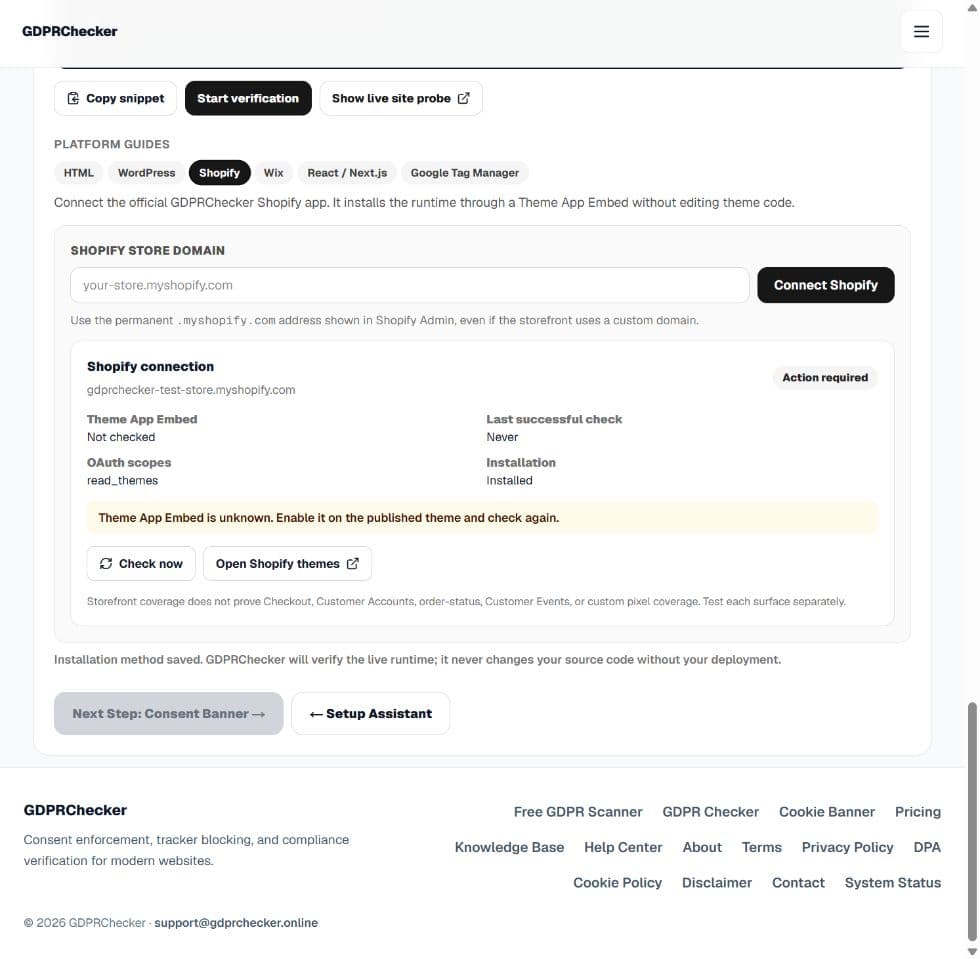
Select Shopify, enter the permanent .myshopify.com domain, then connect or re-check the installation. Site-specific credentials are not shown in public screenshots. Authorize the Shopify app
If Shopify asks you to sign in, use an account that can install apps for that store. Review the requested permissions and select Install or Approve. GDPRChecker stores the Shopify offline token securely and writes only this site's Site ID, Ping Token, API base, and runtime mode into the app installation metafields.
Recover safely after an uninstall and reinstall
Uninstalling the app removes its Shopify authorization and can turn off its Theme App Embed. To recover, install the same GDPRChecker app again from the current site's Setup > Install protection > Shopify card, then complete the Shopify authorization flow. Return to GDPRChecker and confirm the connection card says Installed before selecting Check now. GDPRChecker ignores a delayed uninstall notification from the previous installation, so an old retry cannot overwrite the newly authorized connection. Re-enable and save the App Embed on the currently published theme if the status says disabled, not found, or unknown.
Start a fresh connection from the verified site's Shopify card. Do not reuse an old authorization or installation URL after an uninstall. Open the published theme editor
After authorization, open Shopify Admin > Online Store > Themes and customize the currently published theme. Do not enable the app only on an unpublished draft theme; customers are protected only on the theme that is live.
Enable GDPRChecker in App embeds
In the theme editor, open App embeds from the left sidebar, find Consent protection by GDPRChecker, and turn it on. This injects the GDPRChecker runtime through Shopify's Theme App Embed system without editing theme.liquid.
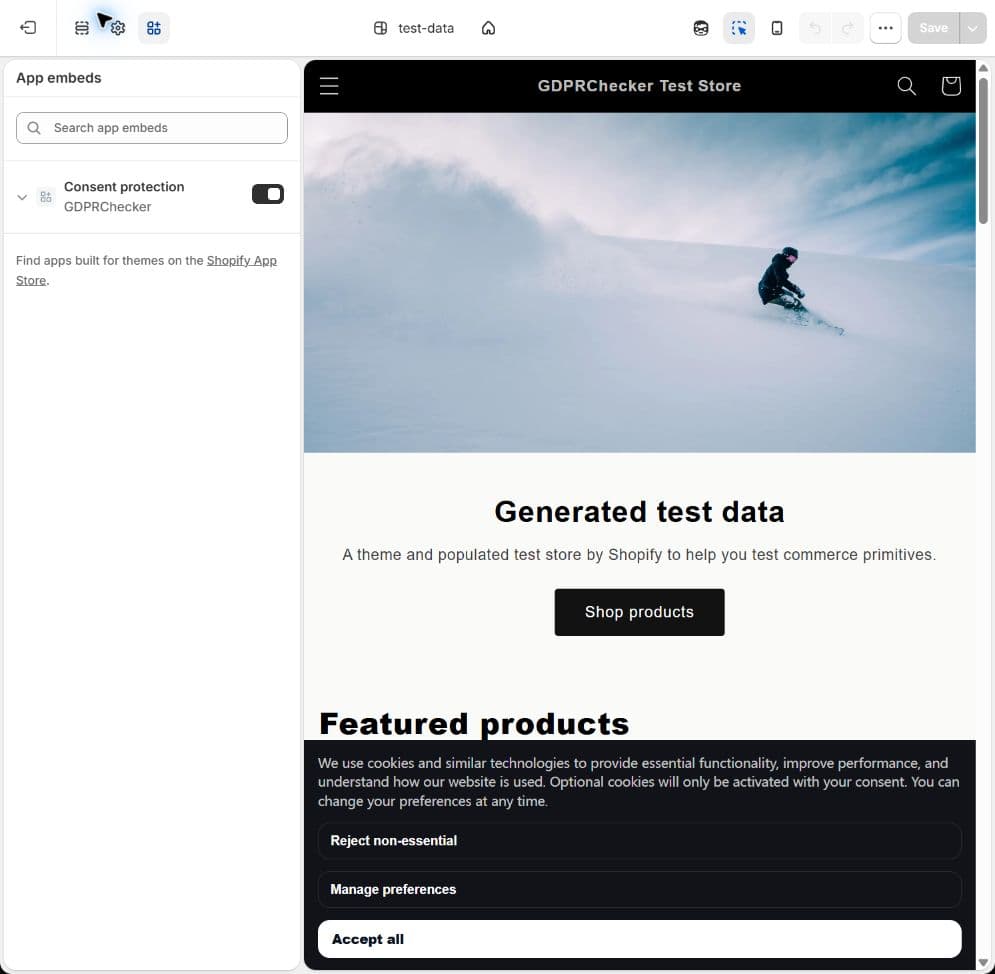
Turn on Consent protection by GDPRChecker in App embeds. The preview should show the consent banner after the runtime loads. Save the theme
Select Save in the theme editor and wait until the Save button is disabled again. Leaving the editor before saving means the App Embed may still be off on the published storefront.
Confirm the banner appears on the storefront
Open the storefront or theme preview and confirm the GDPRChecker banner appears with Reject non-essential, Manage preferences, and Accept all. This proves the storefront runtime is visible; it does not yet prove checkout, pixels, or third-party app behavior.
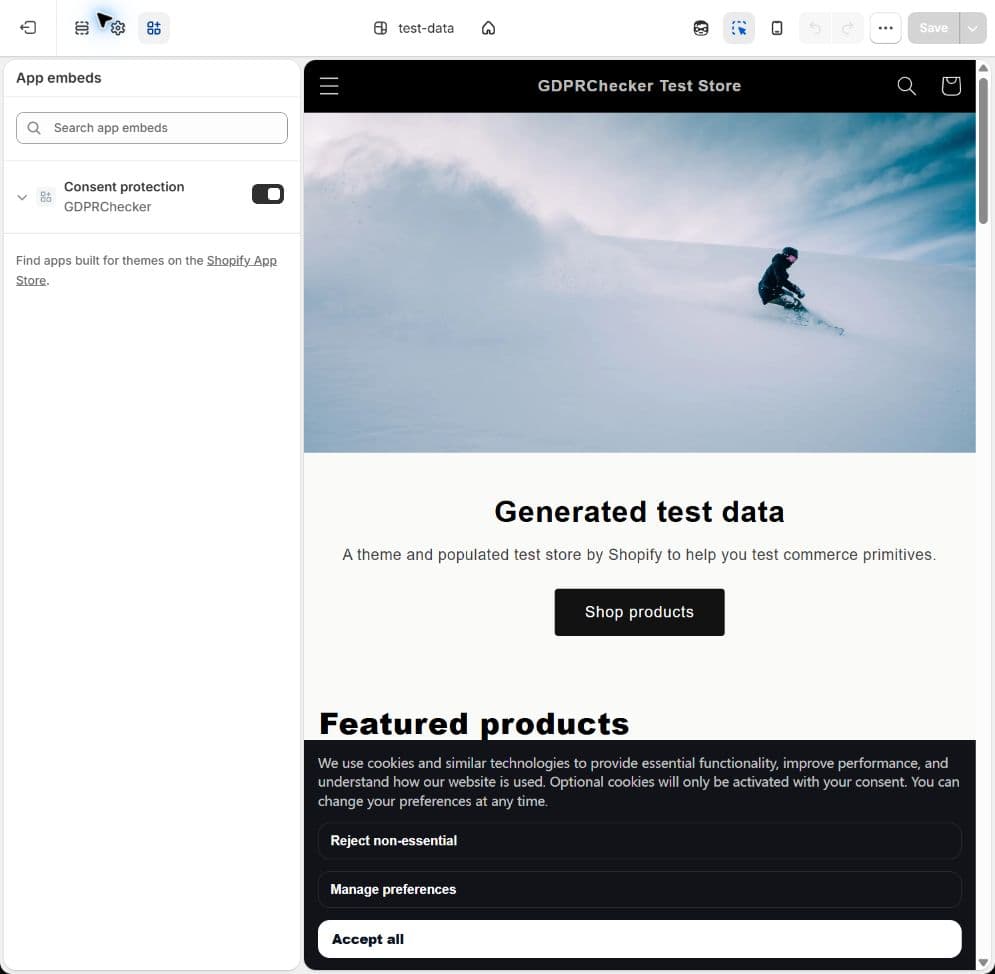
The storefront preview should show the GDPRChecker banner after the App Embed is enabled and saved. Re-check the Shopify connection in GDPRChecker
Return to GDPRChecker and select Check now in the Shopify connection card. Confirm Sync status is Synced, Theme App Embed is Enabled, and the last successful check has a recent time. If it reports Action required, reopen the published theme, enable the embed, save, and check again.
Test common storefront pages
Use a fresh browser session with extensions disabled. Test the homepage, a product page, cart, and any campaign landing page. Make sure Reject non-essential keeps optional tracking disabled, Accept all grants the selected categories, and Manage preferences lets the visitor withdraw consent.
Review Shopify-specific surfaces separately
Theme App Embeds cover the Online Store, not every Shopify surface. Separately test Checkout, the order-status or thank-you page, new Customer Accounts, Customer Events, custom pixels, and third-party app pixels. Shopify-managed pixels and each third-party app must honor Customer Privacy independently.
Expected result
The Shopify installation is linked to the selected GDPRChecker site, the GDPRChecker App Embed is enabled on the published theme, and the dashboard reports the storefront runtime as connected.
The consent interface appears according to your published GDPRChecker configuration, and visitor choices are passed to Shopify Customer Privacy on storefront pages. Continue to audit custom pixels, Customer Events, checkout settings, and third-party app behavior independently.
Troubleshooting
Authentication required
Open the connection from Setup > Install Script while signed in to GDPRChecker. Do not reuse an old /shopify/install link from another browser session, because the connection must be tied to the signed-in account.
Verified site not found
Confirm the selected GDPRChecker site is verified and matches this store. Use the current Connect Shopify button from that site's setup page; an archived or replaced site ID cannot be installed.
The app is installed but no heartbeat appears
In Shopify Admin, open Online Store > Themes > Customize > App embeds, enable GDPRChecker, and select Save. Confirm you edited the published theme, then open the live storefront in a private window and re-check the connection.
The dashboard says Theme App Embed is disabled or not found
Select Open Shopify themes, customize the currently published theme, open App embeds, enable GDPRChecker, and save. Return to GDPRChecker and select Check now. A draft theme does not protect the published storefront.
Sync failed
The status card shows the last safe failure reason. Reconnect the app if it was uninstalled or its access token expired. The shop-level uninstall webhook is checked from the store; Shopify privacy compliance webhooks are app-level settings managed in the Shopify app configuration.
Shopify says the app is installed, but GDPRChecker still says Uninstalled
Refresh the GDPRChecker setup page, then start a fresh Connect Shopify flow from that same verified site. Shopify can retry an earlier uninstall notification after a new authorization; GDPRChecker uses Shopify's original event timestamp so a stale notification is ignored. If the card still does not change to Installed after a fresh authorization, keep the Shopify Admin and GDPRChecker pages open and contact support with the safe status message shown on the connection card. Do not share OAuth URLs, access tokens, Site IDs, or Ping Tokens.