When to use this
Use the GDPRChecker Wix app when the website is built with Wix or Wix Studio. The app installs the runtime through Wix's Embedded Scripts system, so you do not need to add custom code to individual pages.
Add the site's published Wix address to GDPRChecker before starting. A signed Wix installation can verify the selected site during connection, so you do not need to paste a meta tag into the Wix editor.
Use either a custom domain or the complete free Wix address, such as account.wixsite.com/site-name. Each free Wix site path is a separate managed site and counts separately toward your plan. A bare wixsite.com hostname is not enough.
Only one consent app should control a Wix site. Remove or disable another consent banner before activating GDPRChecker to avoid conflicting visitor choices.
Step-by-step instructions
Publish the Wix website
Publish the website first, then copy its complete live address from the browser. Do not use the editor or preview address.
Open Install protection
Sign in to the GDPRChecker account that will own the site. Add the complete published address, including /site-name for a free Wix site. On Verify ownership, choose Connect Wix and verify ownership. For an existing verified site, open Setup > Install protection, select Wix under Platform guides, and choose Connect Wix. Replace an old bare-hostname record first; replacement archives it and invalidates its old runtime credentials while keeping history.
Choose the Wix site and approve access
In the Wix installer, select the correct published website. Review Manage Embedded Scripts (runtime installation) and the Wix-required basic site, business, and email access. Wix describes this basic scope as including the site owner's login email. Native consent additionally requires Manage Consent Policy when that app version is released. Review the actual Wix authorization screen before approving. Contacts and Orders access is not requested.
Open GDPR Checker from Manage Apps
After installation, open Wix Dashboard > Apps > Manage Apps. Confirm GDPR Checker appears under installed apps, then select Open Dashboard.
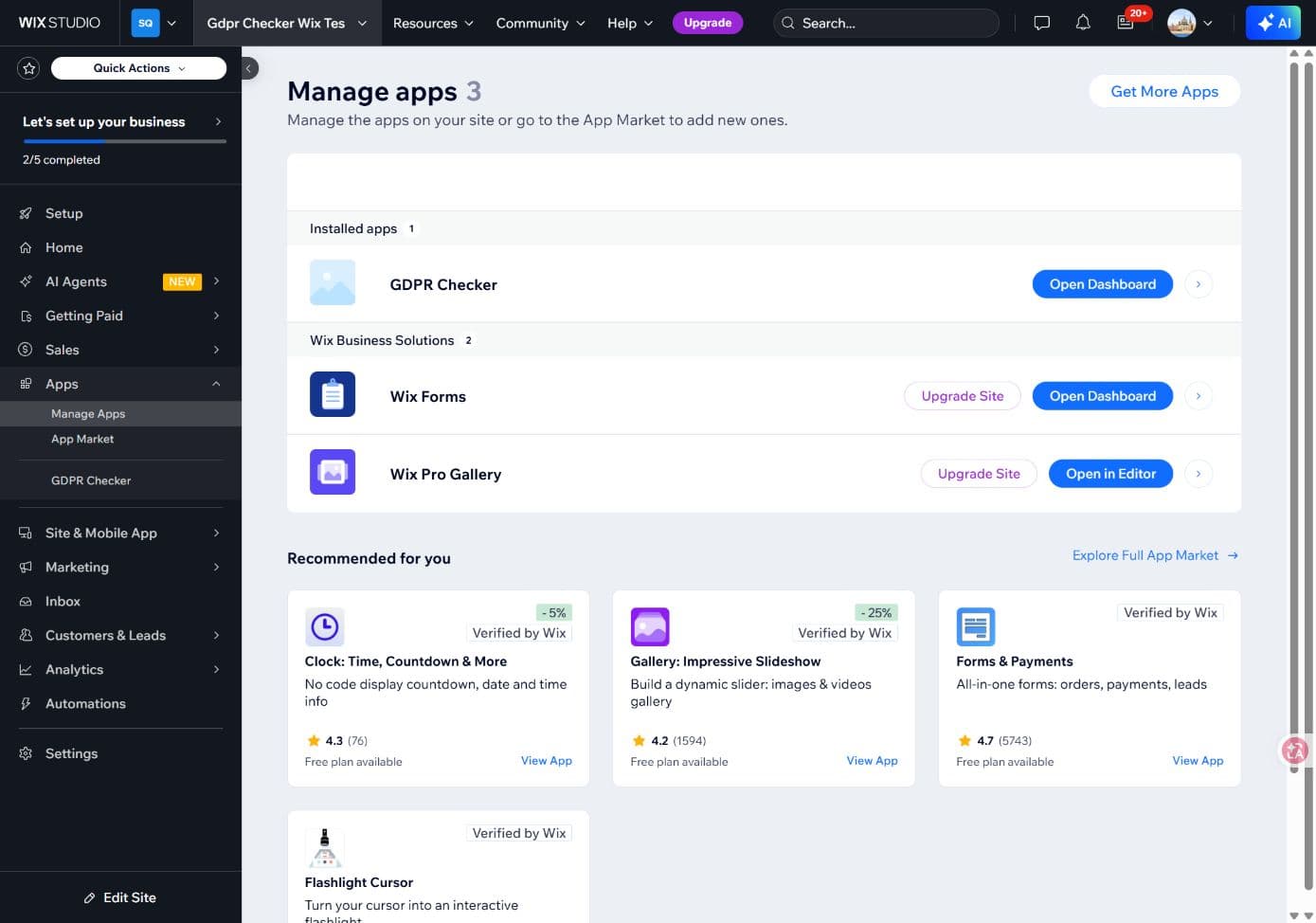
GDPR Checker listed under installed applications in the Wix dashboard. Approve a native-consent permission update when offered
For existing installations, Wix app version 2.0 adds Manage consent policy. In Wix Dashboard > Apps > Manage Apps, choose Update App for GDPR Checker, review the requested permission, and choose Agree & Update if you approve. Wait for GDPR Checker is updated. This grants access only: it does not activate the native-consent feature or change the site's default policy. Native activation remains locked until deployment and Wix uninstall-recovery prerequisites are complete.
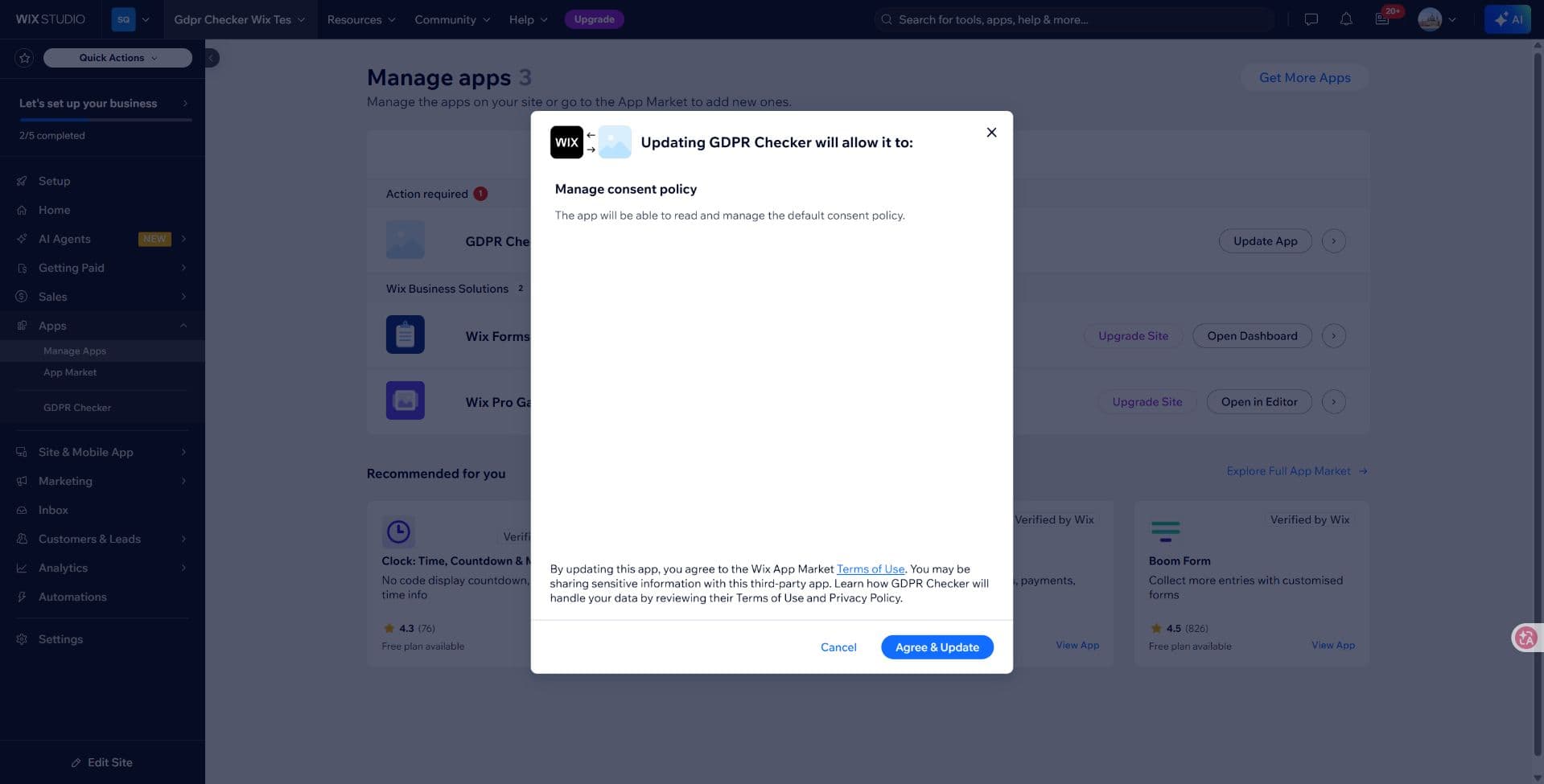
Review the new permission before updating. Granting permission is separate from enabling native consent. Sign in outside the embedded frame
If the embedded dashboard asks you to sign in, choose Open GDPRChecker and sign in in the new tab. Complete security verification and sign in with the account that owns the new site record. Continue on the Connect this Wix site page opened after login. If the connection has expired, reopen GDPR Checker from Wix to start a fresh connection.
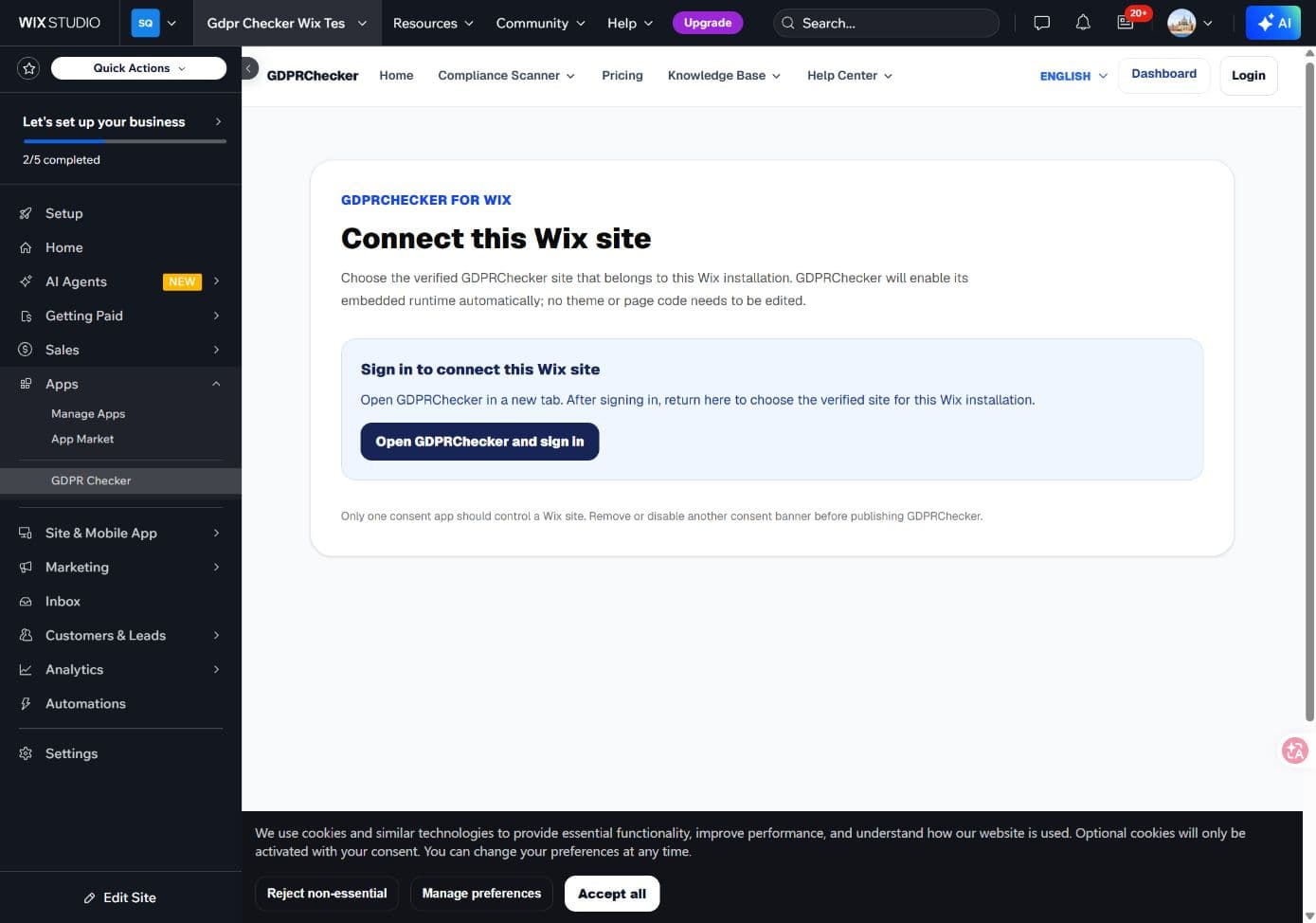
Use the new-tab sign-in when the Wix embedded frame does not share your login session. Connect the matching GDPRChecker site
Select the GDPRChecker site that belongs to this Wix installation and choose Connect this site. GDPRChecker checks Wix's server-returned installation ID, Wix Site ID, and published address. For free Wix sites the /site-name must match exactly. A mismatch or unavailable Wix metadata stops connection without granting ownership. Old bare-hostname records must be replaced with the complete website address; the app will not guess a path.
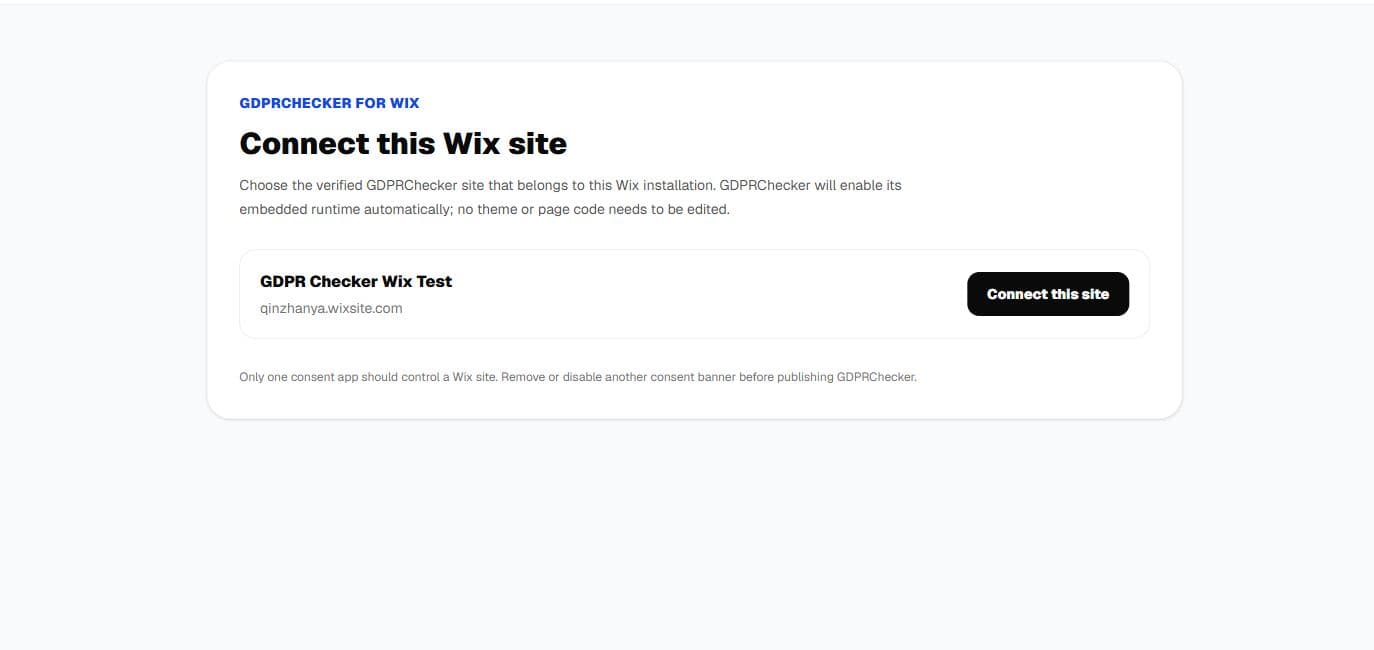
Check the site name and published Wix address before connecting. Publish the consent configuration
After connection, continue to Consent Banner. Review the banner text, categories, appearance, and privacy entry. Choose Publish Changes and confirm that Configuration summary shows a publication time and no pending changes. App installation does not publish a new site's banner automatically. A published configuration is not proof that the runtime is working: check the real page and heartbeat next.
Recover a missing Wix runtime only when diagnostics require it
Normally the Wix app installs the runtime through Embedded Scripts. If the published page has no banner, Privacy settings, or heartbeat after reconnecting the app, open Wix Dashboard > Settings > Custom Code and check for a GDPRChecker entry. As a recovery fallback, paste only the current site-specific snippet from GDPRChecker > Install protection, apply it to All pages, choose Body - end, and keep Code type set to Essential. Do not reuse another site's Site ID or Ping Token. After the app's automatic injection is repaired, remove the duplicate path so the runtime loads only once.
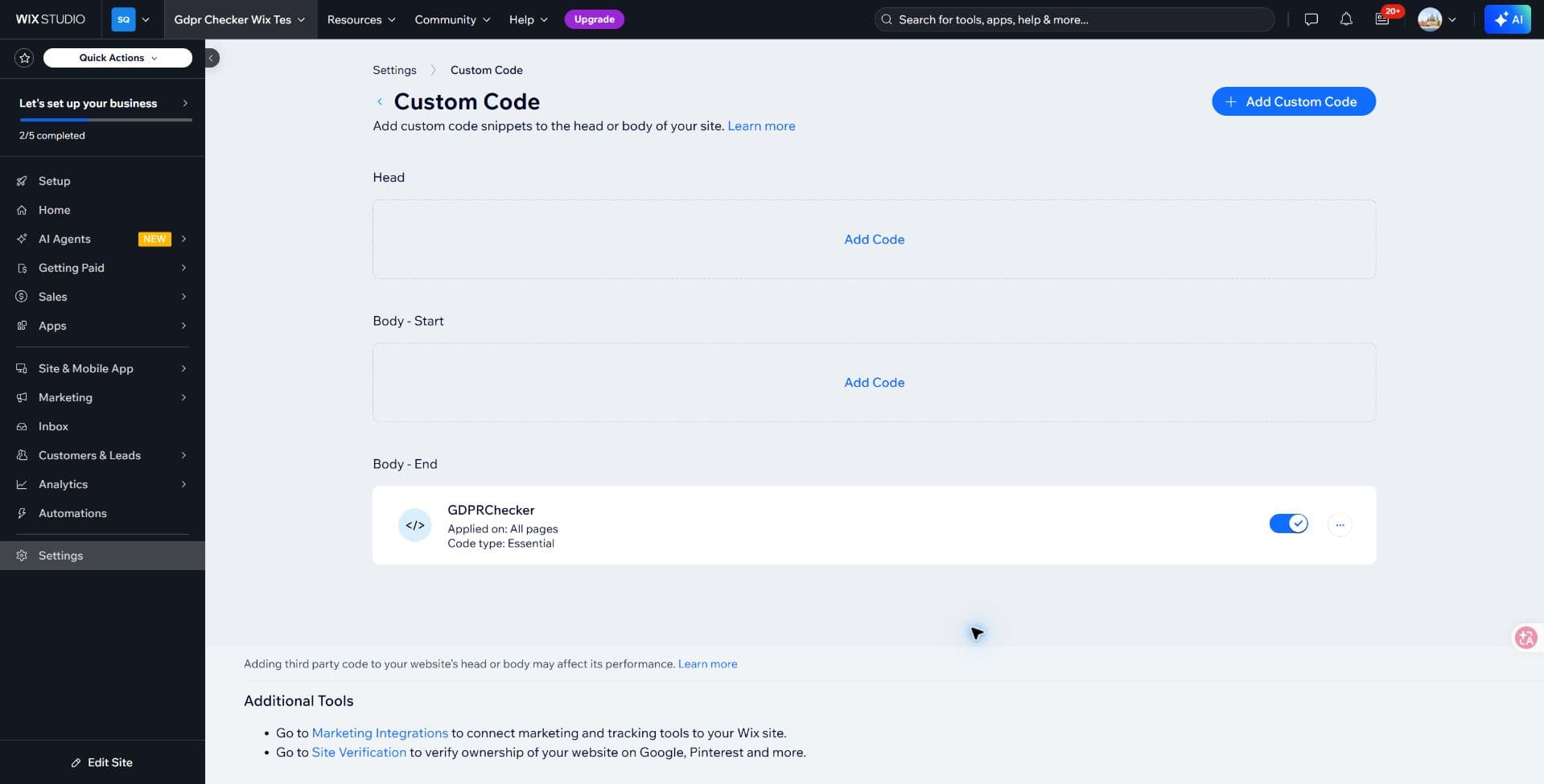
Fallback recovery state: GDPRChecker is enabled on all pages, placed at Body - end, and classified Essential. Confirm the live Privacy settings entry
Open the complete published Wix address—not the editor, preview, or bare wixsite.com hostname. Confirm that the floating Privacy settings control appears. Its presence proves the visitor UI loaded, but it does not by itself prove Wix policy synchronization or Analytics/Ads blocking; continue with the choice tests below.
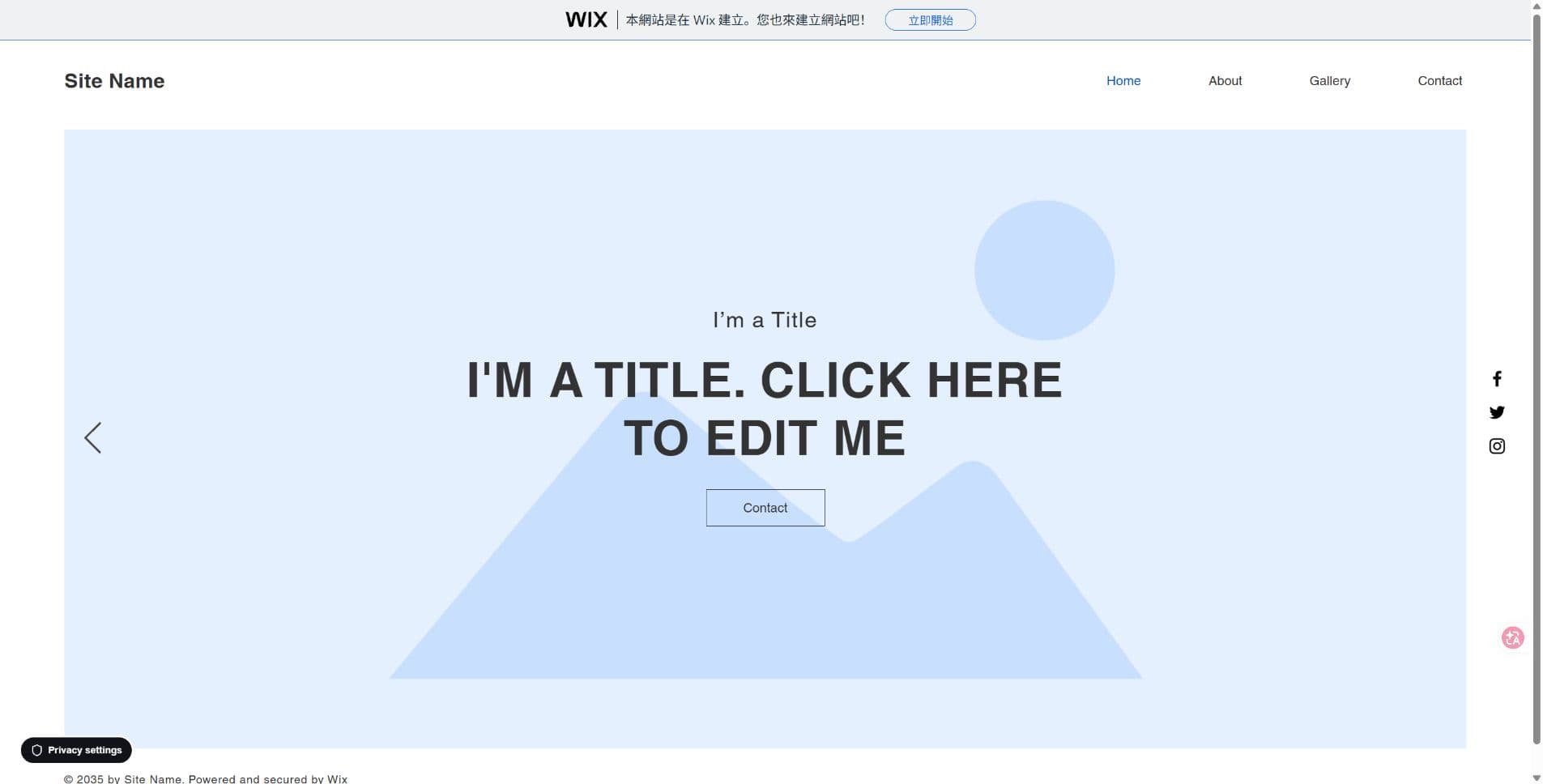
The live published Wix page shows the Privacy settings entry at the lower-left corner. Test the published site
Open the complete published Wix address in a fresh browser session. Confirm the banner appears, choose Reject non-essential, and verify optional categories remain denied. Reopen Privacy settings, choose Accept all, and check the saved preferences and Consent Log. Reopen preferences again and reject optional categories to test withdrawal. Reload and visit another page under the same /site-name to check persistence. If the banner or privacy entry is missing, stop and investigate; do not count the preview as a live test.
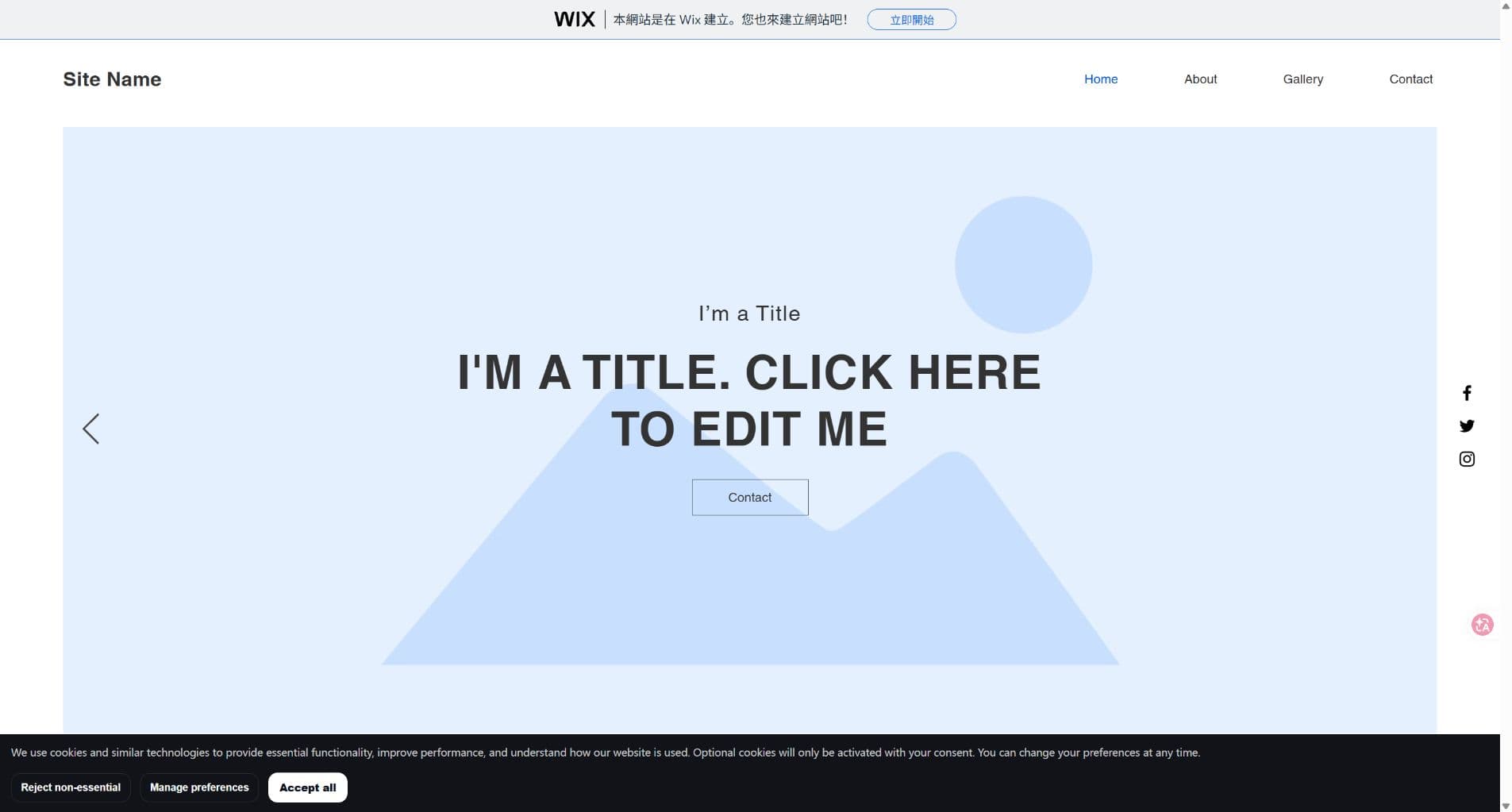
Live Wix test after the compatibility fix: test the real banner, not only the dashboard preview. Check acceptance and withdrawal
After Accept all, reopen Privacy settings: Analytics, Marketing, and Functionality should be checked. Choose Reject non-essential to withdraw optional consent, then reload and reopen preferences: all three should be unchecked and Strictly necessary should remain enabled. Repeat on a subpage. Removing previously granted optional consent should create Consent withdrawn; repeating a rejection is Preferences updated. Older records may still show Preferences updated for withdrawal, so inspect category values as well. Consent choices alone do not prove that every third-party request is blocked.
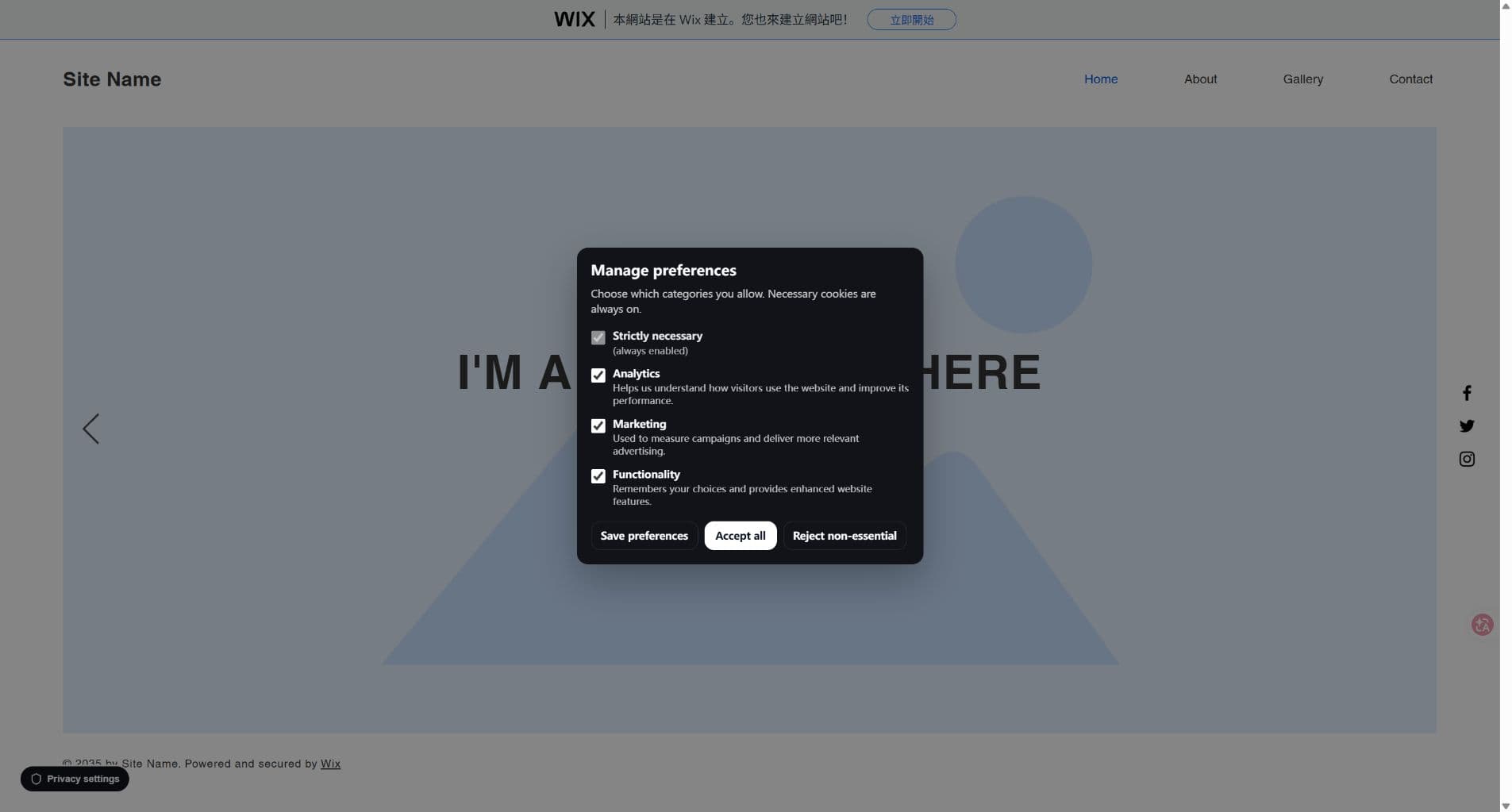
After acceptance, all optional categories are checked. Reopen this panel to withdraw consent. Enable and test Wix native consent
After Wix has granted Manage Consent Policy and confirmed uninstall recovery for the app, open Install protection > Wix > Manage Wix native consent and recovery. Enable the necessary-only site default, then test the published website. Accept all, wait for Privacy choices saved, choose Refresh now, and reopen Privacy settings to confirm Analytics, Marketing, and Functionality are checked. Then choose Reject non-essential, refresh again, and confirm all three optional categories are unchecked. The success notice is shown only after GDPRChecker has sent the choice to Wix and read the policy back successfully. Third-party data sharing remains off, and scripts that ignore Wix consent still require separate gating.
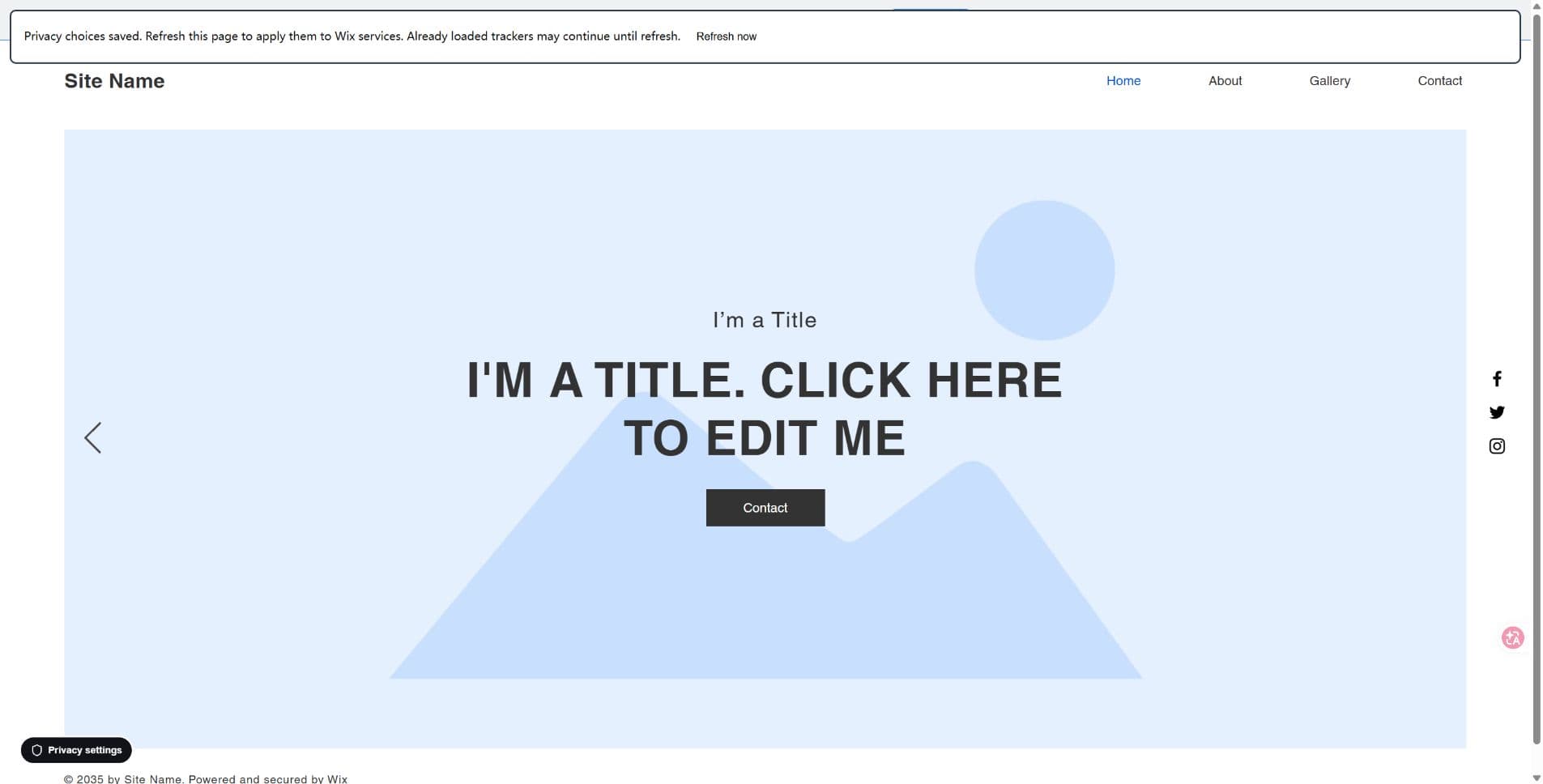
After a native Wix consent change is confirmed, refresh before judging Analytics or Ads behavior. Withdraw native Wix consent and refresh again
Reopen Privacy settings and choose Reject non-essential. Wait for the confirmed Privacy choices saved notice, then choose Refresh now. Reopen preferences and verify that Analytics, Marketing, and Functionality are off while Strictly necessary remains on. This is the withdrawal check. If the confirmation notice does not appear, do not assume Wix accepted the change; investigate the Wix SDK bridge before continuing.
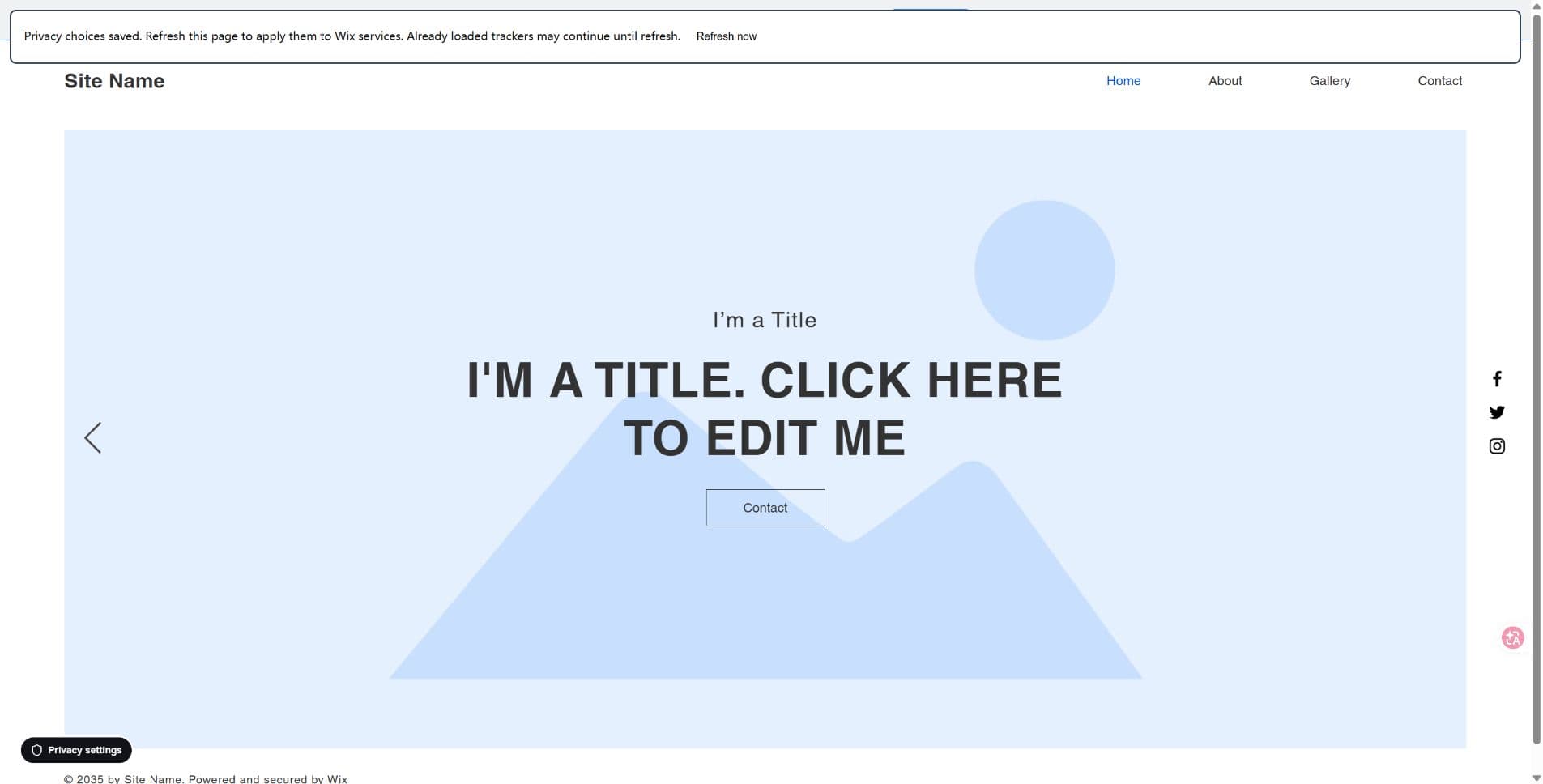
After withdrawal is confirmed by Wix policy readback, refresh again before validating tracker behavior. Confirm the withdrawn choice survives navigation
Open a published page under the same Wix site path, for example /site-name/about, and reopen Privacy settings. Confirm optional categories remain off after withdrawal. This verifies persistence within this website; it does not verify isolation from a second website on the same Wix hostname.
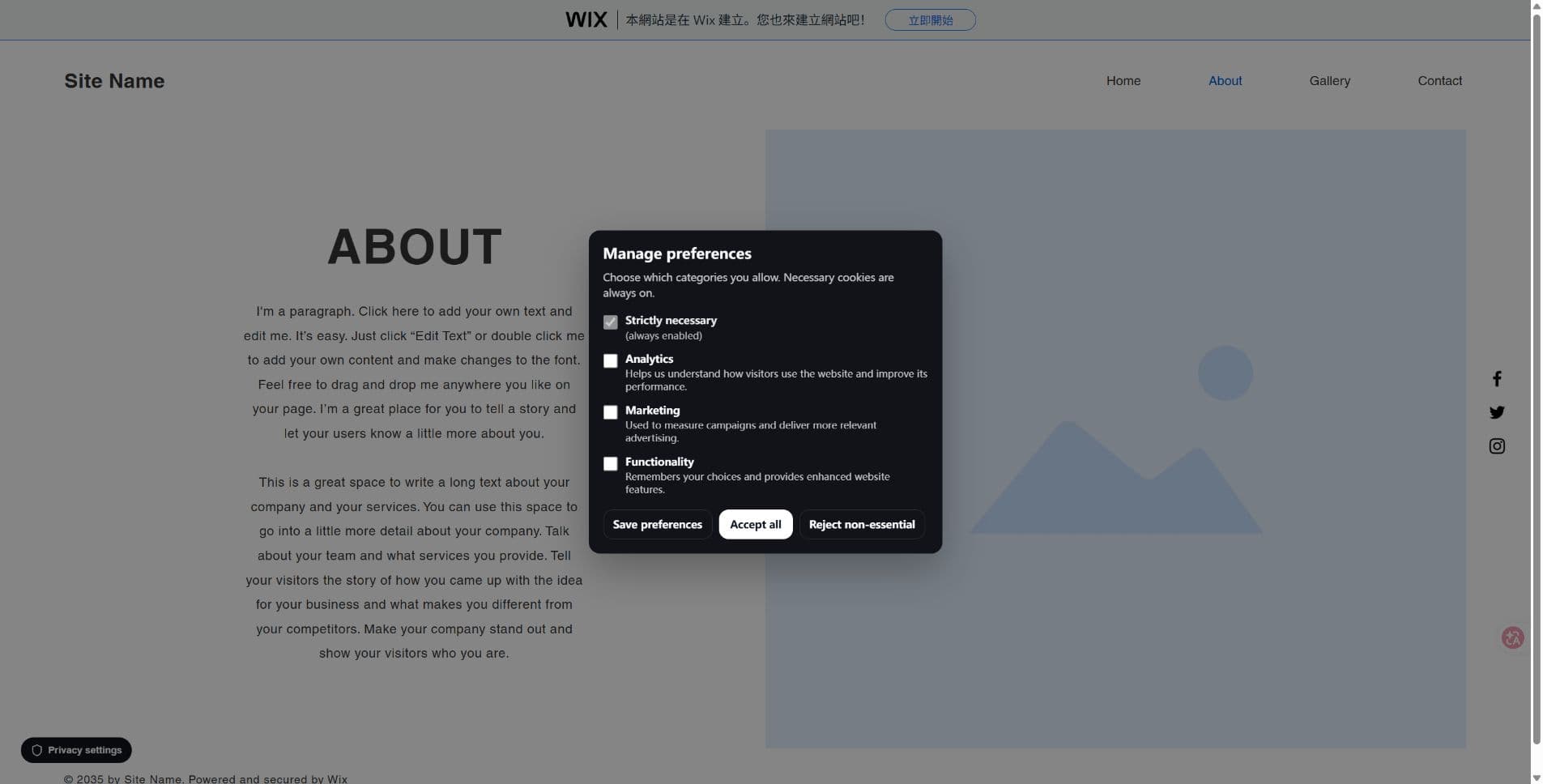
Live About-page check: necessary consent remains on, optional categories remain off. Verify runtime health
Return to GDPRChecker > Confirm runtime health and run verification again. Finish only after Runtime script, Heartbeat, Consent config, and Consent banner are detected.
Expected result
The Wix app is bound to one verified GDPRChecker site and its Essential embedded script is enabled in the HTML head of every published page. The GDPRChecker dashboard reports a fresh heartbeat from the live Wix address.
The runtime uses the existing GDPRChecker consent configuration and does not require access to Wix Contacts, CRM, Orders, or customer records.
Troubleshooting
Enable Wix native consent (controlled rollout)
In the site's installation step, select Wix, then Manage Wix native consent and recovery. Activation stays locked until the operator has deployed the recovery table, added Manage Consent Policy, obtained renewed Wix authorization, and received Wix confirmation of uninstall recovery. Publish the GDPRChecker banner, review the necessary-only default policy, and explicitly confirm Enable. Test Accept, Reject, and withdrawal on the published site, refreshing after each confirmed Wix policy change. Restore the previous default policy before archiving, replacing, reconnecting, or uninstalling. The September 1 controlled live test passed activation, Wix bridge loading, acceptance, rejection, withdrawal, refresh, and preference persistence on the designated free Wix test site.
Published configuration but no banner or heartbeat
A previous runtime stopped when Wix made fetch read-only. The deployed compatibility fix preserves that API and allows consent UI and heartbeat initialization to continue. The August 31 retest passed banner display, category changes, heartbeat, and same-site persistence. A Network interception unavailable: fetch warning still means fetch interception is limited: gate optional trackers before loading them. Do not weaken browser security settings or assume that a working banner proves every Analytics or Ads request is blocked.
Authentication required
Open GDPRChecker in a new tab, sign in with the account that owns the site, then reopen Wix Manage Apps > GDPR Checker. Embedded Wix frames may not share the top-level login cookie immediately, so complete login in the new tab instead of repeatedly pressing Login inside the frame.
No verified sites are listed
Add the published Wix address to the same GDPRChecker account and reopen the connection. Confirm the site is active and not archived. If you replaced an older site, select the new Wix record rather than reusing an old connection URL or site ID.
The app is installed but the runtime is missing
Open Wix Manage Apps and confirm GDPRChecker is installed and its embedded script is not paused. Publish the Wix site, reconnect the app once, and open the complete live address rather than the editor, preview, or bare wixsite.com host. If the runtime is still absent, open Wix Dashboard > Settings > Custom Code and check whether a GDPRChecker entry exists on All pages. Use only the current site-specific snippet shown under GDPRChecker > Install protection; never reuse another site's Site ID or Ping Token. Place a manual fallback at Body - end and keep its code type Essential so the consent UI can load before a visitor chooses. Treat this as recovery evidence and investigate why Wix Embedded Scripts did not persist. If Chrome reports ERR_BLOCKED_BY_CLIENT, temporarily disable the privacy or ad-blocking extension for the Wix test site and reload.
The live-site probe shows Wix 404
Free Wix addresses can include a path such as account.wixsite.com/site-name. Open and test the complete published URL. A probe that checks only account.wixsite.com will reach the Wix account root and can show a 404 even though the named site is published.
The script tag exists but no heartbeat appears
Confirm the injected tag contains the current GDPRChecker CMP loader, a site ID, and a ping token. Then test with browser extensions disabled. Return to Confirm runtime health, expand Advanced diagnostics, and check Runtime script, Last heartbeat timestamp, Runtime siteId, and Dashboard siteId.